Task-15
1Q Explain the difference between selenium IDE, selenium web driver, and selenium Grid
| Functionalities | Selenium IDE | Selenium RC | Selenium Webdriver |
| Record and playback | It has the record and playback feature. | It does not have a record and playback. | It does not have a record and playback. |
| Server | It requires no server to start execution of test cases. | It requires the server to start execution of test cases. | It requires no server to start execution of test cases. |
| Browser | It can be used for testing only in Firefox. | It can be used for testing in the majority of browsers. | It can be used for testing in the majority of browsers including in headless mode. |
| Object Oriented | It is based on Selenese which is a procedural language. | It can be partially used for object oriented programming. | It is majorly used for object oriented programming. |
| Dynamic Locators | Elements cannot be identified. | Elements cannot be identified. | Elements can be identified. |
| Alerts | Cannot handle alerts. | Cannot handle alerts. | Can handle alerts |
| Mouse Actions | Cannot handle mouse actions. | Cannot handle mouse actions. | Can handle mouse actions. |
| Dropdown | Cannot handle dropdown. | Cannot handle dropdown. | Can handle dropdown. |
| iPhone/Android | Cannot perform iPhone/Android testing. | Cannot perform iPhone/Android testing. | Can perform iPhone/Android testing with the help of Android Driver, iPhone Driver. |
| Listener | Does not have a Listener. | Does not have a Listener. | Have Listeners. |
| Performance | Fast [comes as a Firefox plugin]. It interacts with the browser directly. | It does not interact with the browser directly. Hence on a slower side compared to webdriver. | Fast as it interacts directly with the browser. |
| Architecture | Derived from Javascript. | Derived from Javascript. | Not derived from Javascript. |
| Usage | UI interface available to create scripts. | Standalone Jars available to execute test cases in the browser. | Contains API and supported by languages like Java, Python, and Ruby and so on. |
| Xpath | Only has absolute xpath. | Only has absolute xpath. | Has both absolute and relative xpath. |
| Navigation | Cannot handle navigation. | Cannot handle navigation. | Can handle navigation. |
2Q.write the selenium script in java to open the google and search for selenium web browser driver
package Test;
import org.openqa.selenium.WebDriver;
import org.openqa.selenium.chrome.ChromeDriver;
public class selenium3google {
public static void main(String[] args) {
System.setProperty("webdriver.chrome.driver", "C:\Software\chromedriver-win64\chromedriver-win64\chromedriver.exe");
WebDriver driver = new ChromeDriver();
driver.manage().window().maximize();
driver.get("https://www.selenium.dev/"); }
}
3Q. what is selenium ? and how it is useful in automation testing
selenium :
Selenium is one of the most renowned open-source test automation frameworks. Selenium allows test automation of web apps or websites across different browsers & operating systems. Selenium offers compatibility with multiple programming languages such as Java, JavaScript, Python, C#, and more, allowing testers to automate their website testing in any programming language that they are comfortable with. Using the Selenium framework, testers are able to rapidly distribute test cycles by automating test cases over and over again. When integrated with the CI/CD pipeline, Selenium can help with a robust, bug-free release deployment pipeline as well.
Features of Selenium
Selenium supports multiple browsers: Selenium supports multiple browsers like Google Chrome, Safari, Firefox, Opera, etc. One can launch any browser by just giving a simple command.
Multiple Programming Languages Support: Selenium supports multiple programming languages for writing test scripts. This covers Java, Python, “C#”, Perl, etc.
Speed (speed) and execution: There is no need for an intermediate server as Selenium communicates with the browser directly.
Web Elements Identification and Ease of Use: Locators in WebDriver help in locating web elements in web applications. This advantage is much easier for testers to implement.
Open Source and Portable: This is one of the major advantages that Selenium is open-source and portable. Selenium can be downloaded from its official site at https://www.selenium.dev/downloads/.
Works on Various Operating Systems: Selenium Web Driver Script can work on various OS like Linux, Mac, Chrome.
Simple commands: Selenium has very simple commands to implement. It can be learned easily.
Server Installation Not Required Selenium Web Driver does not require the server to be installed, as it directly interacts with the browser.
Why use Selenium?
As we are now familiar with the make-up of Selenium and the tools at hand, let’s take a look at the main points or benefits of Selenium and why it is a great tool for automation testing:
Open Source: Selenium is open source, this means that no licensing or cost is required, it is totally free to download and use. This is not the case for many other automation tools out there.
Mimic User Actions: As stated earlier, Selenium WebDriver is able to mimic user input, in real scenarios, you are able to automate events like key presses, mouse clicks, drag and drop, click and hold, selecting and much more.
Easy Implementation: Selenium WebDriver is known for being a user-friendly automation tool. Selenium being Open Source means that users are able to develop extensions for their own needs.
Tool for every scenario: As mentioned earlier, Selenium is a suite of tools, and you will most likely find something that fits your scenario and your way of working.
Language Support: One big benefit is multilingual support. Selenium supports all major languages like Java, JavaScript, Python, Ruby, C sharp, Perl, .Net and PHP, giving the developer a lot of freedom and flexibility.
Browser, Operating System & Device support: Selenium supports many different browsers Chrome, Firefox, Opera, Internet Explorer, Edge, and Safari as well as operating systems (Windows, Linux, Mac)
Framework Support: Selenium also supports a multitude of frameworks like Maven, Junit, TestNG to make it easier to automate testing. CI and CD tools like Jenkins is also supported, for automating the deployment process.
Reusability: Scripts written for WebDriver is cross-browser compatible. Testers can therefore run multiple testing scenarios with the same base.
Community Support: The Selenium community is quite active and open. Therefore, there is a lot of information and help available when needed.
Advanced User Input: With WebDriver it is possible to request clicking of the browser back and front buttons. A practical feature when testing money transfer applications for example. This feature is not found in many tools, especially open source.
Advantages of Selenium
Ease Of Implementation
Flexibility
Open Source Availability
Language and Framework Support
Multi-Browser Support
Support Across Various Operating Systems
Reusability and Integrations
Parallel Test Execution and Faster Go-to-Market
Disadvantages of in Selenium
It supports Web-based applications only. …
No reliable Technical Support from anybody. …
Limited support for Image Testing
Difficult to use takes more time to create Test cases. …
Difficult to Setup Test Environment when it compares to Vendor Tools like UFT, RFT, SilkTest, etc… …
Limited support for Image Testing
Best Selenium Alternative
Android Studio.
Visual Studio IDE.
Android Studio.
Appium.
Xcode integrated development environment (IDE)
AppExchange.
Tricentis qTest.
Cypress.
4Q.what are the all browser driver used in selenium
Selenium browser drivers are native to each browser, interacting with the browser by establishing a secure connection. Selenium supports different browser drivers such as ChromeDriver, GeckoDriver, Microsoft Edge WebDriver, SafariDriver, and InternetExplorerDriver.
5Q. what are steps to create A simple webdriver script ? explain with the code
We need web browsers such as Chrome, Firefox, Edge, or Safari. So, for this article demonstration, we will use the Chrome browser. A ChromeDriver executable file that matches your Chrome version. Download the latest release from here.
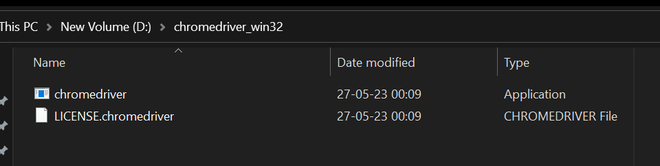
Extract the zip file and copy the path where the chromedriver.exe file is, it is required in further steps. (e.g. – D:/chromedriver_win32/chromedriver.exe)
Create a Selenium with Java project in Eclipse
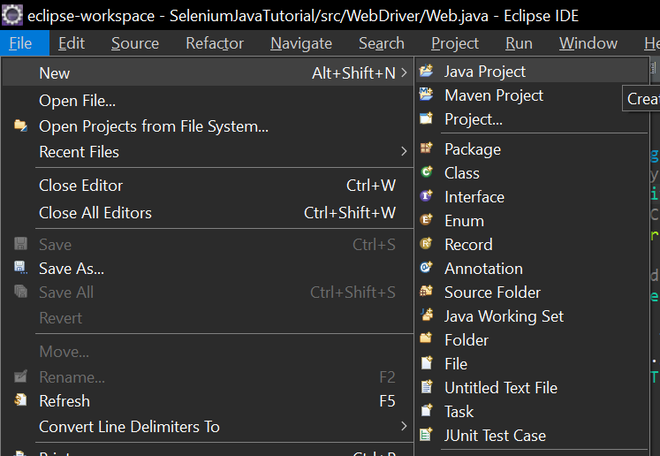
Step 1: Launch Eclipse and select File -> New -> Java Project.
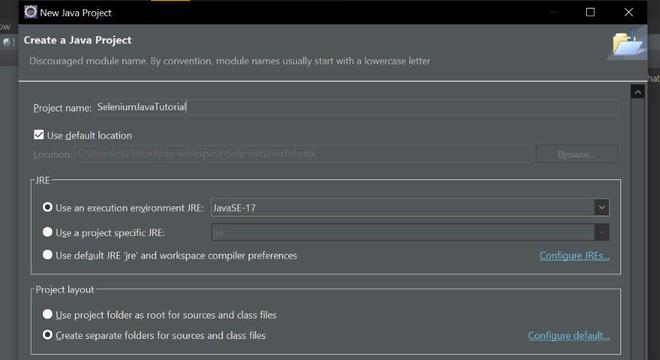
Step 2: Enter a name for your project (e.g., SeleniumJavaTutorial) and click Finish.
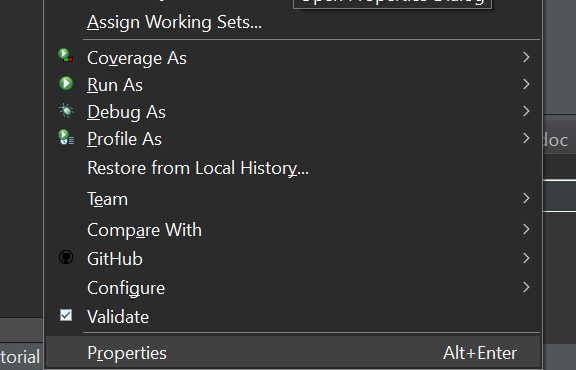
Step 3: Right-click on your project in Package Explorer and select Properties.
Step 4: Select Java Build Path from the left panel click on the libraries tab and then select Classpath. Click on Add External JARs and browse to the location where you downloaded the Selenium WebDriver library (e.g., selenium-java-4.1.0.zip).
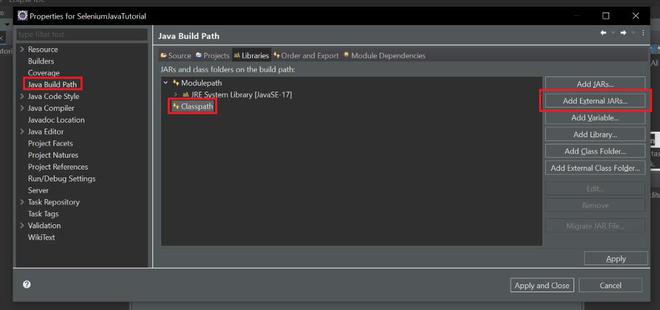
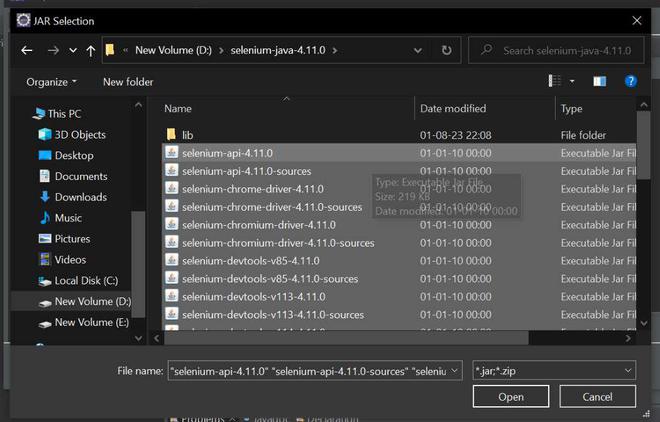
Step 5: Select all the JAR files inside the zip file and click Open and also all the files inside the lib folder. (D:\selenium-java-4.11.0, D:\selenium-java-4.11.0\lib).
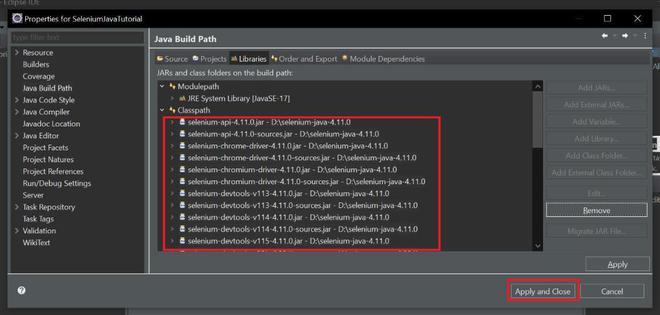
Step 6: Click Apply and Close to save the changes.
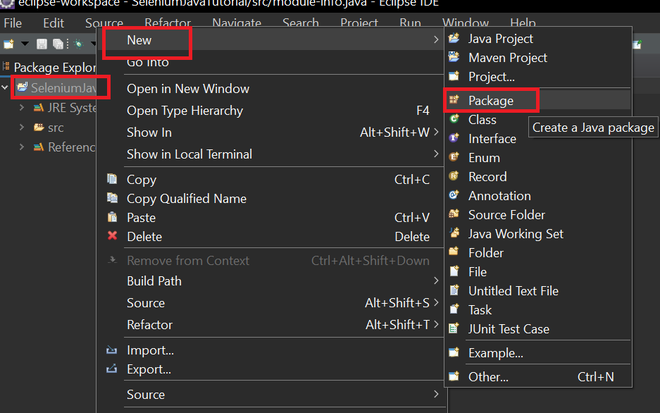
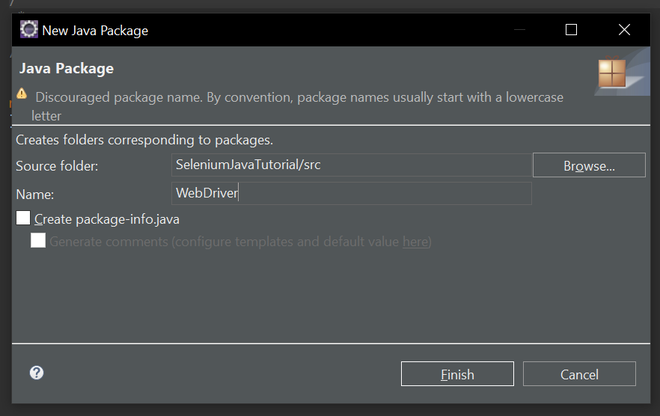
Step 7: Create a new package under your project by right-clicking on the src folder and selecting New -> Package.
Step 8: Add the name of your package (e.g., WebDriver)
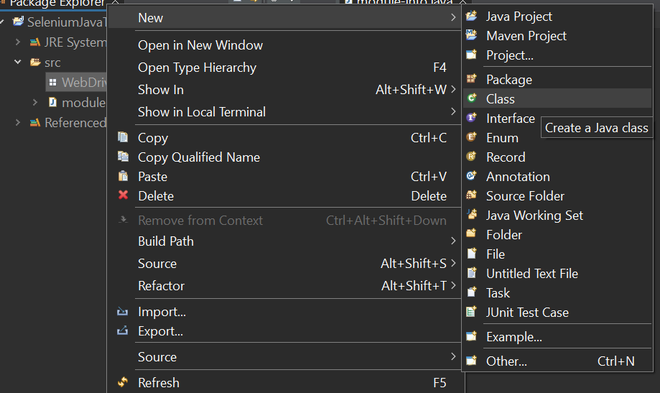
Step 9: Create a new class under your package (e.g., WebDriver) by right-clicking on the package and selecting New -> Class, then Enter a name for your class and click Finish.
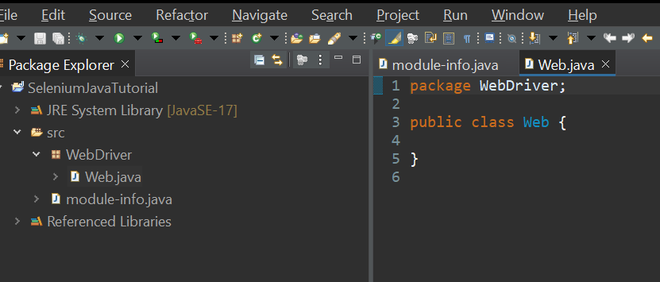
Step 10: After all the steps your file structure looks like this.
Steps for Writing Code
Step 1: Import the required packages at the top of your class:
import org.openqa.selenium.WebDriver;
import org.openqa.selenium.chrome.ChromeDriver;
After importing if still getting errors in import just delete the module-info.java file.
Step 2: Create a main class inside the Web class.
public class Web {
public static void main(String[] args) {
}
}
Step 3: Set the system property for ChromeDriver (path to chromedriver executable). (e.g., D:/chromedriver_win64/chromedriver.exe)
System.setProperty(“webdriver.chrome.driver”, “D:/chromedriver_win64/chromedriver.exe”);
Step 4: Create an instance of ChromeDriver.
WebDriver driver = new ChromeDriver();
Step 5: Navigate to the desired website.
driver.get(“https://www.geeksforgeeks.org/”);
Step 6: Get and print the page title.
String pageTitle = driver.getTitle();
System.out.println(“Page Title: ” + pageTitle);
Step 7: Wait for a few seconds.
try {
Thread.sleep(3000);
} catch (InterruptedException e) {
e.printStackTrace();
}
Step 8: Close the browser.
driver. Quit();